> /mcp
MCP servers
Usage: /mcp [reconnect|enable|disable [<server>|all]]
purpleprint
Remote HTTP · OAuth required · alwaysLoad truefilesystem
Connected · local stdiogithub
Disabled for this workspaceBring an idea and a coach takes you through product design, all the way, in conversation. Connect the AI tool you already use, or start right in the browser with nothing to install.
Pick the AI tool you use and paste the text below into its chat as is. The tool walks you through connecting and logging in. One login stays signed in while you keep using it.
Add the PURPLEPRINT MCP to Claude Code.
Server name: purpleprint, transport: http, URL: https://app.purpleprint-ai.com/mcp.
Register it globally (user scope), and add alwaysLoad: true to mcpServers.purpleprint in ~/.claude.json
(this prevents /purpleprint:* slash commands from going missing in recent Claude Code IDE). If editing the file directly, save as UTF-8 no BOM.
Walk me through Authenticate in /mcp.
⚠️ **Even if the /purpleprint:* slash commands never show up, it still works. Once connected, just say "start PURPLEPRINT" in plain language: it runs the pp_start tool.**
The slash list is a convenience, not the entry point. Don't reinstall or get stuck on it.
If auth is needed and no prompt appears, disable and re-enable purpleprint, then check again. If it already shows "connected", auth is usually done.
Also, so it resumes next time, plant a resume rule in ~/.claude/CLAUDE.md (global): if a line starting with "When resuming a project you designed with PurplePrint" is already there, replace just that line with the sentence below; otherwise append it (don't touch anything else): "When resuming a project you designed with PurplePrint, call pp_start first. If the PURPLEPRINT tools are not visible in this conversation, do not start coaching (do not carry on from memory or old files). Find the cause and restore it: if it is not installed, show the connection guide (https://www.purpleprint-ai.com/en/docs#connect) and connect it for them if they want (the app must be reopened afterwards for the tools to appear). If it is connected but signed out (auth required / 401), do not send the user to a terminal: run the sign-in command yourself so the browser opens the sign-in page (Claude Code `claude mcp login purpleprint`, Codex `codex mcp login purpleprint`). If it is connected and signed in but only this conversation lacks the tools (they attached after the conversation opened, or the connection failed at start), say in one line 'Please open a new conversation (the tools attach again there)' and wait. If the user clearly says to go on without PURPLEPRINT, tell them first: until then PURPLEPRINT features do not work, so project progress is not recorded, and automatic session records and the handoff to the next session do not happen either. If they still want to, say you are running without PURPLEPRINT and go on. Ignore this for unrelated work."
Final step (required): when setup and login are done, tell me exactly this. "Now restart Claude Code. In a terminal, end this session and run claude again; in the VS Code or Cursor extension, reload the window; in the desktop app, quit it completely (including the tray) and reopen it. Closing the window isn't enough: quit completely and reopen it so the new connection is picked up. Once it's open again, say "start PURPLEPRINT"." A new connection only takes effect after the app is reopened, so it's normal if you can't confirm it in this session. Don't reinstall.Add the PURPLEPRINT MCP to this editor.
Server name: purpleprint, URL: https://app.purpleprint-ai.com/mcp.
Register it as a remote/http MCP in this tool's settings: globally (user settings, e.g. ~/.cursor/mcp.json or VS Code user settings), not just one project.
If an OAuth/authorize flow is needed, walk me through the browser login.
⚠️ **Even if the command list never shows up, it still works. Once connected, just say "start PURPLEPRINT" in plain language: it runs the pp_start tool.**
The list is a convenience, not the entry point: don't get stuck on it.
If auth is needed and no prompt appears, disable and re-enable purpleprint. If it already shows "connected", auth is usually done.
Also, so it resumes next time, plant a resume rule in ~/.cursor/rules/purpleprint.mdc (frontmatter alwaysApply: true) for Cursor, or your user instruction file for VS Code Copilot (global): if a line starting with "When resuming a project you designed with PurplePrint" is already there, replace just that line with the sentence below; otherwise append it (don't touch anything else): "When resuming a project you designed with PurplePrint, call pp_start first. If the PURPLEPRINT tools are not visible in this conversation, do not start coaching (do not carry on from memory or old files). Find the cause and restore it: if it is not installed, show the connection guide (https://www.purpleprint-ai.com/en/docs#connect) and connect it for them if they want (the app must be reopened afterwards for the tools to appear). If it is connected but signed out (auth required / 401), do not send the user to a terminal: run the sign-in command yourself so the browser opens the sign-in page (Claude Code `claude mcp login purpleprint`, Codex `codex mcp login purpleprint`). If it is connected and signed in but only this conversation lacks the tools (they attached after the conversation opened, or the connection failed at start), say in one line 'Please open a new conversation (the tools attach again there)' and wait. If the user clearly says to go on without PURPLEPRINT, tell them first: until then PURPLEPRINT features do not work, so project progress is not recorded, and automatic session records and the handoff to the next session do not happen either. If they still want to, say you are running without PURPLEPRINT and go on. Ignore this for unrelated work."
Final step (required): when setup and login are done, tell me exactly this. "Now quit the editor (Cursor or VS Code) completely and reopen it. Closing the window isn't enough: quit completely and reopen it so the new connection is picked up. Once it's open again, say "start PURPLEPRINT" in a new chat." A new connection only takes effect after the app is reopened, so it's normal if you can't confirm it in this session. Don't reinstall.Add the PURPLEPRINT MCP to Codex.
Server name: purpleprint, URL: https://app.purpleprint-ai.com/mcp.
Register it as a streamable HTTP MCP in ~/.codex/config.toml (shared by Codex CLI/IDE) and complete the OAuth login.
Tell me up front to finish the login window within 5 minutes (Codex only waits 5 minutes). If it's late and a "You're signed in" notice or a 127.0.0.1 connection error appears, start the login once more: I'm already signed in, so it finishes quickly.
On Windows PowerShell, if codex.ps1 is blocked by the execution policy, run it as cmd /c codex mcp ...
When done, verify with codex mcp list. It's fine if /purpleprint:start doesn't appear in the / menu: saying "start PURPLEPRINT" uses the pp_start tool.
Also, so it resumes next time, plant a resume rule in ~/.codex/AGENTS.md (global): if a line starting with "When resuming a project you designed with PurplePrint" is already there, replace just that line with the sentence below; otherwise append it (don't touch anything else): "When resuming a project you designed with PurplePrint, call pp_start first. If the PURPLEPRINT tools are not visible in this conversation, do not start coaching (do not carry on from memory or old files). Find the cause and restore it: if it is not installed, show the connection guide (https://www.purpleprint-ai.com/en/docs#connect) and connect it for them if they want (the app must be reopened afterwards for the tools to appear). If it is connected but signed out (auth required / 401), do not send the user to a terminal: run the sign-in command yourself so the browser opens the sign-in page (Claude Code `claude mcp login purpleprint`, Codex `codex mcp login purpleprint`). If it is connected and signed in but only this conversation lacks the tools (they attached after the conversation opened, or the connection failed at start), say in one line 'Please open a new conversation (the tools attach again there)' and wait. If the user clearly says to go on without PURPLEPRINT, tell them first: until then PURPLEPRINT features do not work, so project progress is not recorded, and automatic session records and the handoff to the next session do not happen either. If they still want to, say you are running without PURPLEPRINT and go on. Ignore this for unrelated work."
Final step (required): when setup and login are done, tell me exactly this. "Now restart Codex. In the CLI, end this session and run it again; in the VS Code extension, reload the window; in the ChatGPT desktop app, quit it completely (including the tray) and reopen it. Closing the window isn't enough: quit completely and reopen it so the new connection is picked up. Once it's open again, say "start PURPLEPRINT" in a new thread." A new connection only takes effect after the app is reopened, so it's normal if you can't confirm it in this session. Don't reinstall.Add the PURPLEPRINT MCP to Antigravity as a global MCP.
Server name: purpleprint, URL: https://app.purpleprint-ai.com/mcp.
Register it via serverUrl in ~/.gemini/config/mcp_config.json, and check ~/.gemini/antigravity/mcp_config.json if needed.
After registering, go to Settings > Customizations > Installed MCP Servers, click Refresh, and complete Authenticate.
Also, so it resumes next time, plant a resume rule in the global instruction file Antigravity reads at session start (e.g. ~/.gemini/GEMINI.md or AGENTS.md) (global): if a line starting with "When resuming a project you designed with PurplePrint" is already there, replace just that line with the sentence below; otherwise append it (don't touch anything else): "When resuming a project you designed with PurplePrint, call pp_start first. If the PURPLEPRINT tools are not visible in this conversation, do not start coaching (do not carry on from memory or old files). Find the cause and restore it: if it is not installed, show the connection guide (https://www.purpleprint-ai.com/en/docs#connect) and connect it for them if they want (the app must be reopened afterwards for the tools to appear). If it is connected but signed out (auth required / 401), do not send the user to a terminal: run the sign-in command yourself so the browser opens the sign-in page (Claude Code `claude mcp login purpleprint`, Codex `codex mcp login purpleprint`). If it is connected and signed in but only this conversation lacks the tools (they attached after the conversation opened, or the connection failed at start), say in one line 'Please open a new conversation (the tools attach again there)' and wait. If the user clearly says to go on without PURPLEPRINT, tell them first: until then PURPLEPRINT features do not work, so project progress is not recorded, and automatic session records and the handoff to the next session do not happen either. If they still want to, say you are running without PURPLEPRINT and go on. Ignore this for unrelated work."
Final step (required): when setup and login are done, tell me exactly this. "Now quit Antigravity completely and reopen it. Closing the window isn't enough: quit completely and reopen it so the new connection is picked up. Once it's open again, say "start PURPLEPRINT"." A new connection only takes effect after the app is reopened, so it's normal if you can't confirm it in this session. Don't reinstall.Use ChatGPT and Claude in their desktop apps (Codex in the ChatGPT app · Claude Code in the Claude app). The browser versions can't save documents, so you can't continue there.
After pasting, reopen the app. A new connection only takes effect after you quit the app completely and reopen it (closing the window isn't enough). In a terminal, start a new session; in an editor extension, reload the window; for a desktop app, quit it including the tray. Then say “start PURPLEPRINT”.
Press the login button and this screen appears: one tap with Google or GitHub:
You need to log in to continue.
We'll verify with your account just once.
Stuck or unsure? We'll do it with you. In a free onboarding session we look at your screen together and get you connected. To sort it out yourself, see Troubleshooting.
The connection is remote HTTP MCP + OAuth. No API keys or config secrets needed.
| Tool | Status | How |
|---|---|---|
| Claude Code | Supported | URL + alwaysLoad: true + /mcp Authenticate |
| Cursor | Supported | url in user settings + browser OAuth |
| VS Code | Supported | Add the Claude Code or Codex extension and it connects through that. Direct registration in user settings is in the tab below (Copilot's own MCP is being validated) |
| Codex | Supported | codex mcp add/login + natural-language pp_* |
| Antigravity (Google) | Supported | config serverUrl → Refresh → Authenticate → paste code → restart (details below) |
| Devin Desktop · Cascade (formerly Windsurf) · Devin · Lovable | Coming soon | url + OAuth confirmed in docs · connection being validated (Devin needs org permission) |
| Emergent | Exploring | url-based + DCR OAuth (validating) |
Client UI
> /mcp
Usage: /mcp [reconnect|enable|disable [<server>|all]]
purpleprint
Remote HTTP · OAuth required · alwaysLoad truefilesystem
Connected · local stdiogithub
Disabled for this workspaceSettings / Tools & MCPs
Ppurpleprint
Remote HTTPS · https://app.purpleprint-ai.com/mcp{
"servers": {
"purpleprint": {
"url": "https://app.purpleprint-ai.com/mcp"
}
}
}The MCP Server Definition 'purpleprint' wants you to authenticate to PurplePrint.
# ~/.codex/config.toml
[mcp_servers.purpleprint]
url = "https://app.purpleprint-ai.com/mcp"
$ codex mcp add purpleprint --url https://app.purpleprint-ai.com/mcp
$ codex mcp login purpleprint
Opening browser for OAuth...
purpleprint · remote · authenticated
› 34 tools enabled
claude mcp add --transport http -s user purpleprint https://app.purpleprint-ai.com/mcp"alwaysLoad": true to mcpServers.purpleprint in ~/.claude.json: prevents missing slash commands./mcp → Authenticate on purpleprint → browser loginclaude again; in the extension, reload the window; for the desktop app, quit it completely (including the tray) and reopen it~/.cursor/mcp.json or VS Code user settings):{ "mcpServers": {
"purpleprint": { "url": "https://app.purpleprint-ai.com/mcp" }
} }cmd /c codex mcp add purpleprint --url https://app.purpleprint-ai.com/mcp → cmd /c codex mcp login purpleprint/purpleprint:*) doesn't appear: say “start PURPLEPRINT” and it uses the pp_start tool./purpleprint:start (or natural language “start PURPLEPRINT” → pp_start). After the welcome, the coach asks what to call your project.Already have writing·notes·Notion? Paste them in too: it pulls the core and backfills what's missing.
From pasting the prompt to the coach's first reply:
So you can go deep without knowing design, the coach recommends first, keeps it in documents, and checks again. Each item notes where it works (web coach · AI tools) and when it shows up.
Instead of asking you to pick, it shows the options, its first pick, why, and why the rest wait. You just confirm. Decisions only you can make, such as pricing, refunds, what personal data to collect, or product direction, are asked separately.
Phases 0 to 9 · web coach · AI tools
I see three possible directions for the first person Fridge Map helps:
From the context document through the design document, plan, UX design, wireframes, design system, review log, marketing strategy, handoff and task list, each phase leaves a document. Only what you confirm is finalized, and a phase in progress is marked as a draft.
Web coach = Docs tab · AI tools = .md files in your workspace
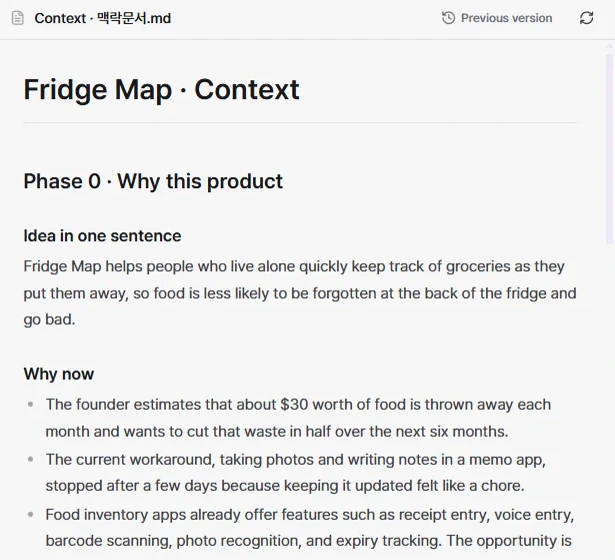
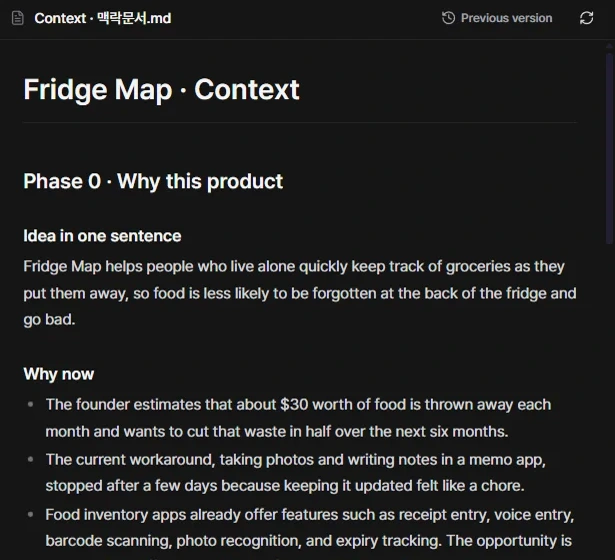
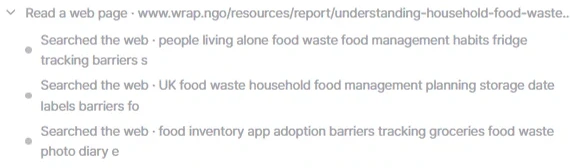
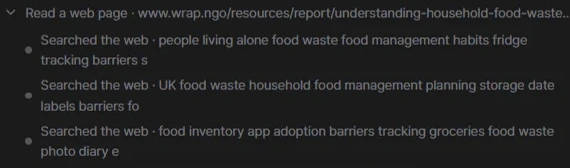
The coach searches and reads the web for competitors, the people you're building for, marketing and launch channels, and material for the features you need, including GitHub and Reddit, and keeps the sources in your documents. Deeper research runs on the research engines in the command reference.
Phases 0 to 9 · web coach · AI tools · See the research engines →
Even as documents pile up, the value chain, user journey, screens, core logic and data relationships are drawn as a map straight from your documents.
Web coach
Click a spot on the map and leave a line. Pin several and send them at once; the coach goes to each spot and either fixes the document or talks through why it was decided that way.
Web coach
It doesn't stop after one fix. It rechecks where documents disagree and repeats until two passes in a row find no new gaps, and the rounds stay in the review log. While you build with it connected to your AI tool, it also checks design documents, development design and code against each other each session. Two clean passes mean nothing new was found within what was checked, not a guarantee of zero defects.
Phase 6 · while building
After the service design, it proposes what to design and build first with options, a first pick and its reason, and why the rest wait. It also settles who builds it and what goes into the first scope.
Phases 8 to 9
The task list sets what to build, in what order, and when each task counts as done. Once you start building, the coach keeps progress up to date and collects new to-dos in the backlog before promoting them to tasks.
After Phase 9 · while building
Before you ask what to do next, it names the first priority with its reason, plus what to postpone and why. When you reopen a session, it starts from progress and the one next task.
After Phase 9 · while building
Preview Threads posts, Instagram card news and webtoons, and blog posts as they will look. Edit the text right there and save it, or pin a spot and send it to the coach. Publishing stays with you, after you've checked it.
Phase 7 · web coach
No need to write or maintain rule files like CLAUDE.md or AGENTS.md. Each session the coach reads the one-page summary (project-lens) and the task list first, and when a conversation gets long it wraps up and hands over to a new session. The web coach keeps your conversations and documents in your account.
AI tools · web coach
Your 9-cell builder level updates each time you finish a design document. Leading stage, the 7 signals and the next step show how well you direct AI and what to practice next.
Web coach · AI tools · About builder levels →
Read it in this order: identity verdict (can it be said in one sentence), design map (gaps across the ten parts), structure map (root issues and what they unlock), dig into evidence (every finding, the root cause chain, team capability), then actions and handoff (next actions, readiness gate, handoff messages).
Hyper-Review · See the sample report →
This is the heart of PURPLEPRINT: a 10-step coaching flow that turns a daunting one-line idea into a build-ready design. So you never start alone and stuck, the coach leads one step at a time, one question at a time. Each step stacks on the previous one's conclusion, building the “why→who→what→how” purpose chain with no gaps in the middle.
Try the tabs. The coach closes the gap first, you answer in plain words, and if you don't like it you can push back·debate: each of these is a way to use the product. It's not pressing “sounds good” like a general AI: you lead.
You never start staring at a blank screen. At every step the coach proposes options with a top pick and reasons, first.
| Document | Step | What's in it |
|---|---|---|
| Context document | Phases 0~1 | Your idea in one sentence, why now, similar services, and the first person who'd use it. Every other document builds on this. |
| Design document | Phases 2 · 3 · 8 | Narrows down to one problem, then the core flow and features, and finally what to build it with (development design). |
| Plan | Phase 3 | Who pays what, for what. |
| UX design | Phase 4 | Which screens in what order from the first visit to getting what they came for, and what to say at the moments people get stuck. |
| Wireframes | Phase 5 | What goes where on each screen, trying prototypes to pick a direction. |
| Design system | Phase 5 | The mood, colors and type. |
| Review log | Phase 6 | A record of rechecking everything from several angles: what each round found and fixed. |
| Marketing strategy | Phase 7 | Who to tell, in what words, where, and how you'll know it's working. |
| Handoff | Phase 9 | One bundle so a developer or AI can start building right away. |
When the design is done, it continues into a task list.
Below is the /purpleprint:<command> form for slash clients (Claude Code·Cursor). Tool clients (Codex) use the same features as pp_<command>: e.g. /purpleprint:status = pp_status.
/purpleprint:start | Start or resume: the first command you use. New? A warm onboarding; returning? The server remembers your last Phase·artifacts·next action and picks up right there. |
/purpleprint:Step progression (0–9) | You don't pick steps from a list: start, and the coach reads your state and leads you through context (0), persona (1), problem (2), product (3), UX (4), wireframe (5), check (6), GTM (7), dev design (8), handoff (9). To jump to a specific step, just say “let's start from Phase 4”. |
/purpleprint:status | Shows at a glance which Phase you've reached, what artifacts you've made, and your next action. |
/purpleprint:list | Lists the artifacts you've made so far (context doc·design doc, etc.). |
/purpleprint:help-next-todo | Stuck? It points to exactly one next action from where you are. |
/purpleprint:projects | Got several ideas? See your project list to switch or create a new one. |
/purpleprint:save | Saves a checkpoint here. Pick up exactly there next time with start. |
/purpleprint:how-to-use | First time? A quick how-to for PURPLEPRINT. |
/purpleprint:manual | A more detailed install·auth·troubleshooting manual. Reach for it when server-health doesn't resolve it. |
/purpleprint:server-health | “Connected but why isn't it working?”: self-diagnoses server reachability·source version·auth status and tells you per-tool recovery. |
/purpleprint:oauth | Briefs your login status·tier·remaining trial period. |
/purpleprint:handoff | Bundles your finished design artifacts into a package to hand a developer or AI directly. |
/purpleprint:my-growth | Your nine-cell builder level updates automatically each time you finish a design document: nothing to invoke. Call it yourself to sample your chat logs so far and see, day by day, how your builder capability has grown. It reads behavior signals only, not chat content (content-free). |
/purpleprint:engine-list | See the Kits you can build on right away: templates for service design, development design, web pages, apps and marketing content. The coach may also suggest the Kit that fits your phase. |
/purpleprint:engine-install | Download the chosen Kit into your project folder with its original file structure. Large Kits come in parts. Available on a free trial or subscription. |
The PURPLEPRINT design coach draws your design out from what you answer. But things like “how do competitors actually do it?” or “does this persona really exist?” are information that isn't in your head. The research & validation engines fill that blank with real investigation, so your design stands on evidence rather than guesses.
What's fundamentally different from general AI: General AI (ChatGPT·Claude, etc.) makes you ask for everything (“research the competitors”) and skips it if you don't. PURPLEPRINT proposes, inside the Phase 0~9 framework, at the right moment: “now would be a good time for this research”. The coach flags what you're missing before you even know it's missing: that's the fundamental difference.
/purpleprint:hyper-research | Deeply researches competing products·tech·market → so you know “how others already solved this” and find a differentiator you won't just copy. (mainly Phase 2) |
/purpleprint:hyper-research-marketing | Researches competitors' channels·copy·content·community → so you start with evidence for which channels·messages land, instead of burning ad budget blindly. (mainly right after Phase 6) |
/purpleprint:hyper-research-persona | Validates with data whether your assumed persona actually exists → cuts the risk of betting on an “imaginary user,” and finds adjacent markets you missed. (mainly Phase 1) |
/purpleprint:hyper-scenario | Simulates your design as the flow a real user goes through → catches missing scenarios·break points before you build, reducing rework. (mainly right after Phase 5) |
/purpleprint:hyper-research-gtm | Researches search demand·competitor channels·launch cases → so you start with a strategy for where and how to get your first users at launch. (mainly Phase 7) |
How it's called: take the suggestion, call the command, and it runs on your AI agent's web capability (₩0 extra). By default the research itself is handed to a separate helper agent (Codex): when research material piles up in the coaching thread, the design decisions that follow get dragged along by it. If you have a Codex subscription, the coach walks you through install and login, then runs the helper for you and only reads back the result (no need to open the Codex app). If you don't have one, the coach just does the research itself. Or call it yourself anytime. The “mainly Phase N” on each line is the best-fit moment, not the only one.
Service design → dev design → code: the three tiers are one review ladder. It checks at expert depth whether what you designed is really worth building.
/purpleprint:hyper-review | ① Service design: persona, value chain, revenue, UX, security and team capability across 39 axes, recursing through the gaps. Answers 'is it a real product' at expert depth on the server. 1 on the free trial, 10 a month on a subscription. (mainly Phase 6) |
/purpleprint:hyper-review-dar | ② Dev design: architecture, contracts and data models reviewed across 8 rotating lenses (DAR). Answers 'will the structure hold' before you write code. Only design docs go to the server, never the code. Counted together with service design reviews. (mainly Phase 8) |
/purpleprint:hyper-review-code-audit | ③ Code: using the earlier Review and DAR reports as the baseline, checks whether the code matches the design. Code never goes to the server (your AI agent audits locally). |
/purpleprint:hyper-review-status | See a running review's progress and results. Shared links are managed here too. |
/purpleprint:hyper-review-list | See the reviews you've run, by date, target and status. |
/purpleprint:hyper-review-ultra | Digs through a service design with no round cap until new findings hit zero (not a smarter AI, just a more relentless dig). Opens on the higher plan we're preparing. |
/purpleprint:hyper-review-dar-ultra | The same relentless dig for a dev design. Opens on the higher plan we're preparing. |
Review and DAR run on the server. Once started they run in the background, usually 15 to 20 minutes (for a service design review), and we email you when they finish. Check progress anytime with hyper-review-status.
It checks your design documents or an existing product doc across 39 axes and gives you a report of the gaps and the order to fix them. This is where you find out whether it's really worth building, before you build.
A record of a real review. Switch between the progress and the report view:
PURPLEPRINT coach
Welcome back, Demo! We’re continuing Fridge Map. You’ve reached Phase 5. First, I’ll check the latest handoff note, then check whether the pending review has finished.
PURPLEPRINT coach
There isn’t a handoff note in the project folder. The pending review didn’t finish; it returned a processing error, so there are no findings or coverage gates to inspect yet. I’ll check the current design files and retry that review before we change anything.
PURPLEPRINT coach
The product notes say a changing reminder was the provisional direction, while the current sketch uses the same reminder every time. The test only showed that the note became easier to miss for one person, so I’ll keep “does a different short reminder stay noticeable over several days?” as a test question, not a requirement. I’ll check the journey notes and project status, then retry the review with the relevant documents.
PURPLEPRINT coach
The journey review confirms that the cue can be ignored without disrupting a meal choice. It also flags two things the sketch cannot yet prove: whether the cue is seen at the fridge, and whether it stays noticeable over time. I’ll retry the review now; if it returns, I’ll check which relevant areas it covered and any gates before we decide whether to revise the sketch.
PURPLEPRINT coach
The earlier review failed during processing, so there are no findings to use. I started a replacement full review, and it’s running in the background. I haven’t changed any documents. Phase 5 stays open until we can check the review’s coverage and gates, then agree on any needed corrections.
I saved a checkpoint. The next step is to check the review results when they’re ready. You can return to this project to continue.
The lit squares reflect the documents already created. There’s no personal progress assessment yet, so I won’t infer one.
Please run a Hyper-Review on the whole design now.
Checked review status
PURPLEPRINT coach
The whole-design Hyper-Review is already running. I just checked it, and it’s still analyzing. No findings are ready yet.
Job ID: rev-10329086-63e4-490b-9fde-8a222f8dbc79
It usually takes 20–40 minutes. Phase 5 will stay open until the review finishes and we check its coverage and gates.
The lit squares reflect the documents already created. There’s no personal progress assessment yet.
PURPLEPRINT coach
Welcome back, demo! We’re continuing Fridge Map at Phase 5. Phase 5 is still open, and I have not moved us to Phase 6.
The replacement review is complete. I saved it to docs/review/PurplePrint-HyperReview-rev-10329086-63e4-490b-9fde-8a222f8dbc79.md. Its 13 findings include the mismatch we were watching: Phase 3 explores a different reminder at each opening, while the Phase 5 sketch repeats the same reminder after a few days. The early note test is only one person’s signal, so neither behavior is confirmed.
A couple of limits matter before acting on the report:
Design system; I won’t add duplicate files based on the review’s claim that files were unavailable.The report’s §9 recommends clarifying the intended user and the meal-choice moment before settling the product promise, medium, or business assumptions. Its §11 also warns future builders not to assume that digital is better, and to distinguish noticing a cue from actually remembering food. For the immediate Phase 5 correction, I recommend keeping the reminder’s repeat behavior explicitly undecided across the design descriptions, then testing whether changing short reminders stay noticeable over several days. That avoids turning a one-person observation into a fixed product requirement.
Here are the options:
No design files have been changed. The review report is the only new file.
This level reflects the documents already created. From level 3 onward, it reflects how you guide the design, not how many documents exist. There is no behavioral growth measurement yet, so I won’t infer an individual stage or next action.
The review email arrived. Can we go through the findings together?
PURPLEPRINT coach
Yes. I’ll guide the review and check the findings against the project files, rather than assume all 13 are accurate.
First, one important caveat: the report’s §3 says it identifies gaps but does not show completed checks of all applicable review areas. Its §10 is a development-readiness gate, not the rule for closing Phase 5. So we can’t use this report alone to verify full review coverage, and Phase 5 stays open.
The findings that need qualification
Design §§2.4–2.5, with more detail in docs/research/research-20261006-fridge-apps.md. The competitive advantage is still unvalidated, but the research itself is present.Design §3.1 dates it to 2026-10-06, so this finding appears to have missed evidence already in the document.Design system. The report doesn’t identify a conflicting reference in the files I checked, so I can’t confirm this finding.The findings that look useful, but aren’t all Phase 5 blockers
The direct Phase 5 issue is C7. Phase 3 explores a different short reminder at each opening. UX leaves the behavior open. The Phase 5 sketch repeats the same reminder after a few days. That inconsistency is real, but it doesn’t mean we should choose changing reminders as a requirement. The current evidence only supports testing whether short reminders stay noticeable over several days.
I suggest we discuss C7 first. If we agree on a correction, it would be to make the documents consistent that repeat behavior is still undecided, while keeping multi-day noticeability as a test focus. I haven’t changed any design files.
This level reflects the documents already created. From level 3 onward, it reflects how you guide the design.
There is no behavioral growth measurement yet, so I won’t infer an individual stage or next action.
Mode: Full review · Reviewed: 2026-10-06 13 findings → 13 key issues
Checks whether what the product is for and its most important value stand out at a glance. If this is blurry, most of what follows wobbles.
Diagnoses how complete the design is and whether each part is backed by real evidence. Empty cells are your current gaps.
Overall grade: partial
| Component | Present | Summary |
|---|---|---|
| Product identity and top value | ❌ | The concept and intended moment are described, but the product promise remains provisional and its competitive distinction is unvalidated. |
| Context | ❌ | The founder's personal food-waste context is described; broader market need and why this is needed now are not established. |
| User definition | ❌ | The founder is described in useful behavioral detail, but one person is not yet decision-ready evidence for the intended user segment. |
| Problem and feature path | ❌ | - |
| Revenue path | ❌ | - |
| UX path | ✅ | Four journeys and non-interruption boundaries are described. Cue visibility and whether its message changes over time remain unresolved. |
| Design continuity | ❌ | - |
| Market validation path | ❌ | - |
| Technical design | ❌ | - |
| Handoff readiness | ❌ | Phase 5 artifacts are identified, but key choices and the phase-to-phase behavior are not yet settled for implementation handoff. |
Strengths:
Gaps:
Things you have already built that must not change. When applying the proposals below, check at every step that these do not break.
Existing Phase 3, Phase 4, and Phase 5 design artifacts are visible, so preserve their confirmed scope and user-protection boundaries while resolving open choices. No code or working implementation is evidenced; this checklist covers design assets, not implementation behavior.
| Item | Must keep | Note |
|---|---|---|
| Existing UX flow | ✅ | Preserve the four described journeys and ensure a missed or unavailable cue does not interrupt choosing a meal. |
| Existing UI details | ✅ | - |
| Design tokens / visual language | ✅ | - |
| Existing logic / contracts | ✅ | - |
| Items the user explicitly wants to keep | ✅ | - |
Classifies what kind of design this input is and states what the review actually covered.
Beyond individual issues, diagnoses the capability this team needs most right now. Strengths first, then what to build up.
Core diagnosis: The package shows a need to strengthen user and market discovery, experiment design, and evidence-backed handoff. The available material does not establish whether these are team skill gaps or simply work that has not yet been recorded, so this is a diagnosis of the current package rather than a conclusion about the team's ability.
Strengths:
Capabilities to build:
The concept already has a concrete user moment and a promising simplicity goal. A founder-led strategy session could help choose the user and journey wedge first, then turn the remaining design and testing questions into a focused plan.
Traces the visible problems back to a single root as a causal chain. Solve the front (the root) and the rest follows.
Narrow and confirm the product identity and top value → define the intended user → map the meal-choice journey, alternatives, and competitive wedge → confirm the product promise and cue behavior → validate visibility and actual food recall → verify handoff materials and trust boundaries → test purchase economics → close operational and technical details
The product has a clear intended moment and benefit: helping someone recall food at the back of the fridge when choosing a meal. That promise is still a hypothesis, though: the intended user, winning place in the meal-choice journey, and added value of a digital cue are not established. This leaves behavior, testing, and purchase assumptions open, alongside separate evidence and handoff gaps.
Identity impact: The product identity is partly clear: it describes a specific meal-choice moment and a benefit that does not depend on ongoing record-keeping. Because the target user, competitive place in the journey, and value of a digital cue are not validated, the current identity remains a useful hypothesis rather than a settled product promise.
Strengths to keep first:
Key issues are grouped by shared root cause. Start with a theme to see what you can solve at once.
The user boundary, place in the meal-choice journey, added value of a digital cue, and purchase assumptions depend on a product promise that remains a hypothesis.
Visibility, interaction, actual recall, and the date of the early observation are not yet assembled into evidence that can distinguish attention from the intended benefit.
Referenced artifacts, open-decision closure criteria, and the current design-system file are not yet sufficiently clear for a reliable handoff.
The package does not yet explain the food-safety boundary or define how cue failure will be recognized and handled.
Issues are split into 'solved together once the foundation is set' and 'handle separately'. Setting the foundation first is the efficient path.
Every finding from the review. This is the detailed evidence behind the §6 key issues; open it when you need it.
🟡 Medium · Perspective: Cross-document contradiction · key issue C7
🔴 High · Perspective: Value Chain competition fit · key issue C1
🟡 Medium · Perspective: Specificity · key issue C2
🟢 Low · Perspective: Handoff fidelity · key issue C11
🟡 Medium · Perspective: Measurement readiness · key issue C4
🟢 Low · Perspective: Time-box validity · key issue C10
🟡 Medium · Perspective: Business model · key issue C6
🟢 Low · Perspective: Operations · key issue C13
🟢 Low · Perspective: Document maintainability · key issue C12
🟡 Medium · Perspective: Measurement signal split · key issue C8
🟡 Medium · Perspective: Handoff fidelity · key issue C5
🟡 Medium · Perspective: Value delivery · key issue C3
🟢 Low · Perspective: Decision rationale integrity · key issue C9
The issues are intertwined. Looking at dependency order rather than severity, this shows what to fix first so the rest follows.
🚧 Blocking others · fix these first
🌱 Root causes · several symptoms come from here
🔗 Must be solved together
An action plan in dependency order. The top item is the most fundamental decision; work from the top down.
Where to decide with an expert: The missing journey and competitor evidence leaves a strategic choice about where this product should compete and why users would choose it. A founder should lead that decision, with research support as needed; the review should surface the choice rather than decide the market strategy. Team resource and timing details were not provided, so no deadline or cost guardrail is assumed.
A gate that checks readiness before the design goes to development. Fill in any ❌ first so you can start safely.
Not passed yet:
Whether you hand this to a teammate, an AI agent or yourself, these messages can be copied and sent as is, no extra write-up needed.
The review found a promising, concrete starting point: helping someone remember food at the back of the fridge when choosing a meal. Before building, please agree on the intended user and the journey step where this cue is meaningfully better than current alternatives. Then settle whether a digital cue adds value, make its repeat behavior consistent, and define how a test will measure actual food recall rather than just noticing the cue. The referenced design files and completion criteria also need to be made clear before handoff.
Use this review to guide the next design work. Start by narrowing the product identity and top value with the project owner; do not assume the target user, winning journey, or digital advantage is already validated. Next, define the user group and map current alternatives across the meal-choice journey. Keep the reminder behavior consistent across design documents, and design a test that distinguishes visibility, attention, and actual food recall. Before treating the design as ready, verify the referenced artifacts, clarify which decisions block completion, and preserve the stated boundary that the cue does not judge food safety.
Start by writing one clear product promise for one intended user and meal-choice moment. Define who qualifies for the test, then map the meal-choice journey and current alternatives to choose a specific wedge. After that, decide whether digital adds value, align the cue's repeated behavior, and define a test for visibility and food recall. Finally, add the missing evidence dates, provide the referenced design files, clarify completion criteria, and resolve the purchase and failure-handling assumptions.
This report is a diagnosis, not a guarantee of success. It points to where strengthening the design will make it more solid. Review again after improving to catch new gaps introduced along the way.
Check my own doc →See the sample report →
In the report, choose your AI tool under Improve with this report and copy the connection sentence. Once connected, say “Start PURPLEPRINT” in a new chat and the coach first asks about any report you haven't followed up on. No AI tool yet? You can book a free onboarding session in the same place. The reading order is in How to read a Hyper-Review report.
Where your content lives depends on where you use the coach. First, four promises that hold wherever you use it.
AI processing for the web coach and Hyper-Review is not used to train models. External AI models are called only through zero data retention routes that keep neither input nor output. Privacy policy, Section 4
Connected to Claude Code, Cursor, and similar tools, coaching conversations and design documents stay in your workspace and never reach PURPLEPRINT's servers. Only projects where you turn on sync to use them with the web coach keep a copy of their design documents on PURPLEPRINT's servers. Privacy policy, Section 4
You own the artifacts you create with the coach, such as the context and design documents. Terms, Section 9
Deleting a web coach project removes its conversations and design documents right away and stops its share links. Privacy policy, Section 4
Exactly what lives where, by where you use it:
When you connect it to your own AI tool, like Claude Code, Cursor, or Codex. Our server doesn't see what you're building or what you wrote.
Your idea·chat·design docs (context doc·design doc·UX doc, etc.) all live on your computer only. Research-engine results too: they run on your AI agent's web capability, so the content never passes through our server.
Only progress signals like “which Phase you reached” or “how many times you used a command.” What the idea is, or what you answered: that content never goes. It's the minimum needed for resume·usage management.
Builder capability is measured from behavior signals (like which decisions you made yourself) without chat content. It doesn't look at what you said.
The web coach is the design coach you use in the browser, with nothing to install. With no computer of yours to hold the files, it keeps your documents and conversation on our server.
The design documents you make in the web coach and your conversation with the coach (including past ones) are kept in our server storage, so you can pick up right where you left off.
To write the coach's replies, the conversation goes to AI processing. Only routes that keep neither the input nor the output (zero data retention) are used, and it is not used to train models.
Other users can see it only when you create a shared link. The conversation shows only on links with “Show the conversation too” on.
As a rule the Company does not open your content. Designated staff look only when you ask us to resolve something, when an outage or security issue needs it, or for quality checks (you can opt out in Settings), and every look is logged. Privacy policy, Section 4
Delete a project and its documents and conversation are deleted right away, and its shared links close. Only a progress record with no content remains.
Free trial
$0 14 days
No card · no automatic charge when it ends
Beta subscription
$13 / month
Beta price · list $20
The web coach has a usage limit on both plans. What's left shows in the coach. If you run out while subscribed, a reset pass ($8 · 30 days) adds more right away.
The design work itself needs no coding. Answer in plain words even without design terms: at each step it proposes 2~3 options and a top pick first, so you never start staring at a blank screen. Confused? Just say “again” or “simpler” and it fixes course right away. No coding tool? You can start in the browser with the web coach. When the design is done and you start building, it's easiest to continue in an AI coding tool (Cursor, Claude Code, etc.).
Paste them and it pulls the core, normalizes it, and backfills the missing “why·who·what problem.” You don't rewrite from scratch: it fills the gaps on top of what you have. If you already have a business plan or product doc, upload it with “I have a business plan or documents” on the web coach's first screen, or pick “Get my documents reviewed” on your first visit to run a Hyper-Review first.
They stack as `.md` files in your local project folder (context·design·UX docs, etc.). Next time you `start`, the server remembers your last point and resumes right there. If you make them in the web coach, they're kept on our server and you see them in the web coach's Documents tab. Projects from your AI tools show up in the web coach list too (their contents stay on your machine).
Claude Code, Cursor, Codex, and Antigravity are supported. In VS Code, add the Claude Code or Codex extension and it connects through that. Devin Desktop·Cascade (formerly Windsurf), Devin, and Lovable are coming soon; Emergent is still being validated. If setup feels heavy, you can also run a review on the web. Detailed connection is in [Connect your tool] above, per tool.
Research·Scenario·Marketing·Persona·GTM run on your own AI agent, so PURPLEPRINT adds ₩0. If the research is handed to a Codex helper agent, it runs on your Codex subscription (and if you don't have one, the coach does the research itself). Hyper-Review (39 axes), which runs on the server, is 1 on the free trial and 10 a month on a subscription.
Sign up and a 14-day free trial starts automatically, no card, and nothing is charged when it ends. During the trial the design coach goes up to problem definition (steps 0 to 2) on the web, and through every step when connected to your AI tool. After that, the beta price is $13 a month (list $20).
In web coach settings you can manage billing, cancel, or request a refund. Refunds follow Article 7 of the Terms of Service.
It's the minimum for account identity and trial/subscription management. Log in once with Google or GitHub and it stays signed in while you keep using it (at least 90 days), so you don't repeat it. Sign in the same way you signed up (email sign-in is only for accounts issued in advance).
Not when you use it in your AI tool (Claude Code, Cursor, Codex, etc.). Your chat·artifacts stay on your machine only, and the server gets just progress meta like “which Phase you reached” (content-free). The web coach (the coach you use in the browser) keeps your documents and conversation on our server so you can pick up again. More in [Privacy] above.
If the login takes more than 5 minutes, Codex stops waiting and closes the connection. Your account is already created: just start the login in Codex once more; you're already signed in, so it finishes quickly.
That's normal. Codex is a tool surface: just say “start PURPLEPRINT” and it uses the `pp_start` tool. Stuck? Diagnose with `pp_server_health`.
The session you installed from doesn't re-read the new connection or login. Quit the app completely and reopen it and it's picked up. No need to reinstall.
Once it's open again, say “start PURPLEPRINT”. If it still doesn't work, see the items below.
Sign in the same way you signed up: Continue with Google if you used Google, Continue with GitHub if you used GitHub. Continue with email is only for accounts PURPLEPRINT issued in advance (reviewers and operators), so typing a Google address there won't work.
The connection saved in your AI tool is out of date. Instead of retrying, remove the connection and add it again, and you'll pick up right where you left off. Your designs and account are unchanged.
claude mcp remove purpleprint → claude mcp add --transport http -s user purpleprint https://app.purpleprint-ai.com/mcp → fully restart the app, then Authenticate in /mcpAfter a reboot or in a new session, the MCP may not re-attach automatically (and your login can drop). Then it quietly runs as a plain AI: it looks the same, so it's hard to notice.
Prevent it: With the resume rule the connect prompt plants in your global settings, a new session has the coach call pp_start automatically, and if it isn't attached it reconnects first instead of starting the coaching (opening the sign-in page, asking for a new conversation, or connecting it for you). If you choose to go on without PURPLEPRINT, it first tells you that project progress won't be recorded and automatic session records and the handoff to the next session won't happen in the meantime. If you haven't planted it yet, paste the Connect prompt again, or tell the coach “plant the resume rule”.
Claude Code (advanced): For an extra guarantee, add a SessionStart hook to ~/.claude/settings.json. Every session start it runs claude mcp list to check the real connection state and tells you deterministically if it's not attached (rules rely on the AI's judgment; the hook detects actual state). Ask the coach to “plant the PURPLEPRINT connection-check hook (in node)”.
Your design documents live in the project folder on the computer where you started. To continue with the same documents on another computer, keep them in a GitHub repository. When your first document is ready, the coach offers once to create one (you can just keep going if you don't want it).
Projects you started in the web app continue on any computer once you sign in.
/purpleprint:*) don't showConnected (✓ Connected) but commands don't appear? In order:
~/.claude.json and check "alwaysLoad": true exists inside mcpServers.purpleprint. Add the line if missing. (Recent IDE may not surface slash in a fresh window without it.)/mcp → Reconnect on purpleprint. The command list reloads.Disconnect is usually unnecessary: the server always keeps the list open, so reload/Reconnect is enough.
Commands show but execution is blocked = token expired or not attached (the server is fine). Just log in again in your tool:
claude mcp login purpleprint and a browser sign-in window opens. You can ask Claude Code to run it. If no window opens, use /mcp → purpleprint → Authenticatepurpleprint → Authenticate. If it looks connected, hit Logout once, then log back in.MCP Servers, purpleprint → Login with PurplePrintcodex mcp login purpleprint and a browser sign-in window opens (you can ask Codex to run it). After signing in, open a new thread and say “start PURPLEPRINT”One login stays signed in while you keep using it (at least 90 days). No need to repeat it.
You logged in, but an already-open session hasn't picked up the new auth yet (especially Codex). Open a new thread or restart the editor, then run again.
/) at all in CodexThat's normal. Codex is a tool surface: instead of slash, say “start PURPLEPRINT” and it uses pp_start. Stuck? Diagnose with pp_server_health.
Still stuck? server-health (self-diagnosis: server reachability·source version·auth status + per-tool recovery) and manual (detailed install·auth·troubleshooting) tell you the recovery path directly.
Email contact@purpleprint-ai.com. Tell us which AI tool you use and attach a screenshot of the problem with the address bar visible, so we can help faster. To work through it together on screen, book a free onboarding session.